
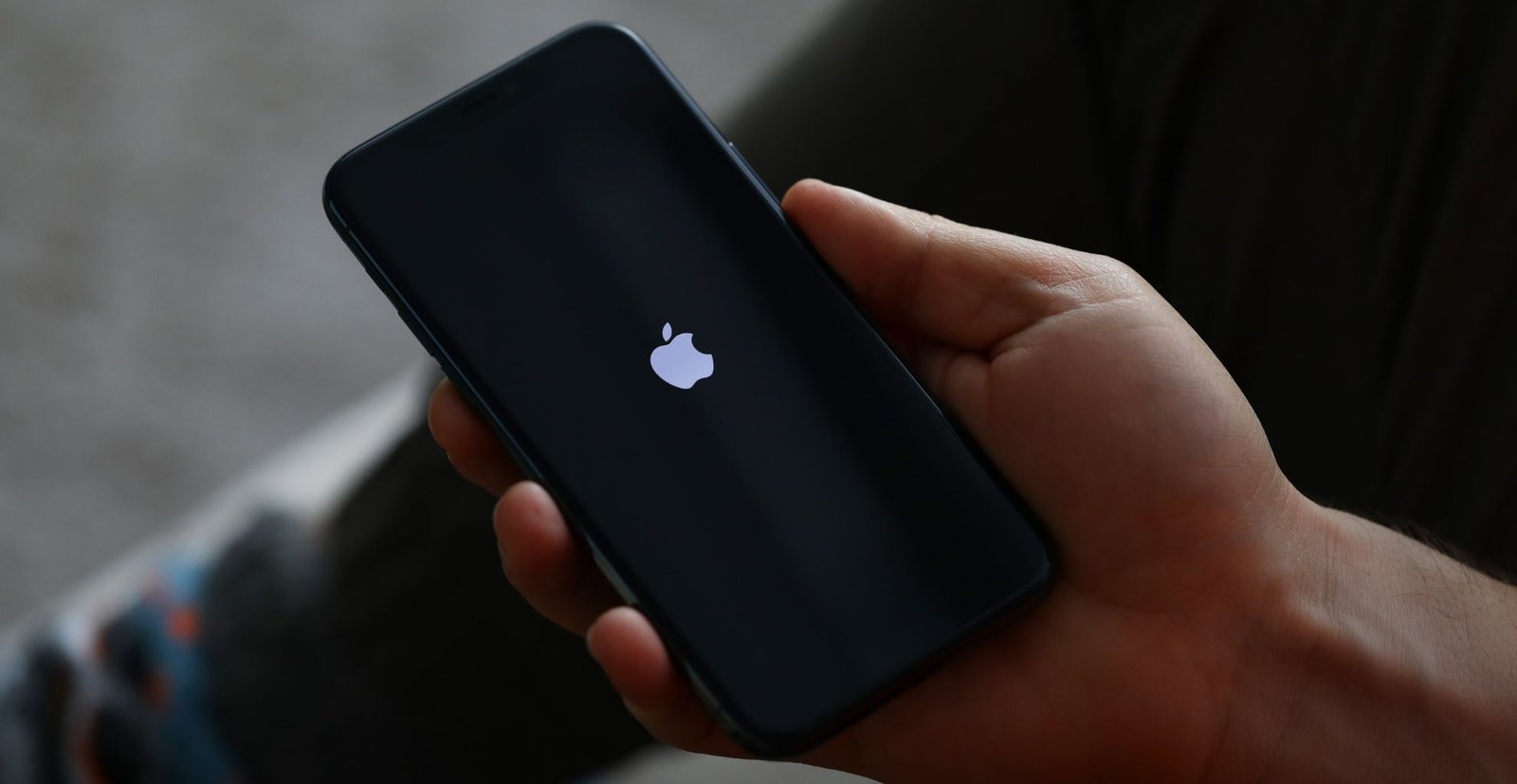
I’ve seen this issue more times than I can count at the repair bench. A customer comes in, worried, holding a iPhone Stuck on the Apple Logo. No home screen. No response. Just a loop.
The good news is this problem is often software-related, not permanent damage. But ignoring the wrong steps can make it worse, especially if you keep interrupting restores or draining the battery mid-process.
Let’s go step by step.
Table of Contents
The Quick Fix: Force Restart Your iPhone
A force restart is always your first move. It clears temporary system glitches without touching your data. Think of it as forcing a clean reboot when the system freezes during booting.
Here’s what is happening:
- The phone is stuck in a software glitch
- System fails during startup sequence
- Apple logo keeps reappearing
Button combinations by model
| iPhone Model | Button Sequence |
|---|---|
| iPhone 8 to iPhone 17 series | Press Volume Up, then Volume Down, then hold Side button |
| iPhone 7 / 7 Plus | Hold Power + Volume Down |
| iPhone 6s / SE 1st gen | Hold Home button + Sleep/Wake |
What matters here is timing. If you miss it, repeat the sequence. Sometimes it takes a second attempt before the device restarts properly.
This step is safe and does not erase data unless the system is already badly corrupted.
The Reliable Fix: Entering Recovery Mode
If force restart fails, the next level is Recovery Mode. This is where things get serious but still safe if done correctly.
You’ll need:
- A computer (Mac or PC)
- Finder (macOS Catalina or later) or iTunes
- USB cable (Lightning or USB-C depending on model)
What happens in Recovery Mode
| Action | Result |
|---|---|
| Connect iPhone | Computer detects device |
| Enter Recovery Mode | Shows cable + computer icon |
| Choose Update | Tries reinstall without data loss |
| Choose Restore | Full reinstall, data erased |
This method fixes deeper iOS software corruption, failed updates, and stuck boot cycles.
If your issue came from an iOS update failed situation, this usually solves it.
Apple officially recommends Recovery Mode as the primary fix for system-level issues (Apple Support Documentation, 2024).
What if Recovery Mode Doesn’t Work?
This is where most people panic, but this is also where experience matters.
If Recovery Mode fails repeatedly, the issue may not be software anymore.
Possible causes:
- Fault in NAND chip (internal storage)
- Damage to bootloader or firmware
- Severe hardware-related boot failure
- Water or drop damage affecting logic board
At this stage, even DFU restore (Device Firmware Update) is the last software attempt. It bypasses normal boot systems completely and forces a clean firmware reinstall through Finder or iTunes.
| Method | Success Rate | Risk |
|---|---|---|
| Force Restart | Medium | None |
| Recovery Mode | High | Data loss possible |
| DFU Restore | Very High | Full data wipe |
If DFU restore fails too, you are no longer dealing with software. That means a terminal hardware fault.
At that point, continuing software attempts is pointless and can waste time.
Why Is Your iPhone Stuck on the Apple Logo?
Understanding the cause helps you avoid repeating the issue.
Most cases I’ve repaired come from these:
- A failed software update interrupted halfway
- Full storage causing system crash during boot
- Corrupted iOS installation
- Jailbreak or unstable modifications
- Battery or logic board instability
- Water or physical damage
- Random software conflict during startup sequence
When iOS cannot load properly, it gets stuck between power on and system launch. That is the boot error loop you see.
Apple has documented that interrupted updates and storage overload are among the most common causes of startup failures in iOS systems (Apple Developer and Support Insights, 2024).
Offload Unused Apps (Prevention Fix)
Most users ignore this, but storage is a silent killer for iPhones.
If your storage is nearly full, iOS struggles to create temporary system files during boot, which can trigger crashes.
How it helps:
- Frees up system space
- Prevents boot loop issues
- Improves performance stability
- Reduces update failure risk
| Feature | What it does |
|---|---|
| Offload Unused Apps | Removes apps but keeps data |
| Safari Cache Clean | Deletes temporary browsing data |
| Storage Optimization | Frees system space automatically |
Go to:
Settings → General → iPhone Storage → Enable Offload Unused Apps
This is one of the simplest ways to prevent iPhone boot loop fix Reading scenarios from happening again.
Final Thoughts from Repair Experience
At iRepair Mobiles, I’ve seen everything from simple software glitches to full logic board failures behind an iPhone stuck on the Apple logo. In most cases, people panic too early or try random fixes that make recovery harder.
The correct order is simple:
- Force restart
- Recovery Mode restore
- DFU restore
- Hardware diagnosis
If you reach step 3 or 4, it is no longer a DIY fix. That is where professional diagnostics become necessary.